Your range companion
Start simple. Learn as you go.
Time your strings, score WP-1 and supported NRA targets from photos, and keep a history of your practice. Start with a short tour, then return to the guide when you need a hand.
Available now, free for iPhone and iPad. Download WhirledPiece on the App Store.
Score a photo · Step 1 of 5
Choose a clear target photo
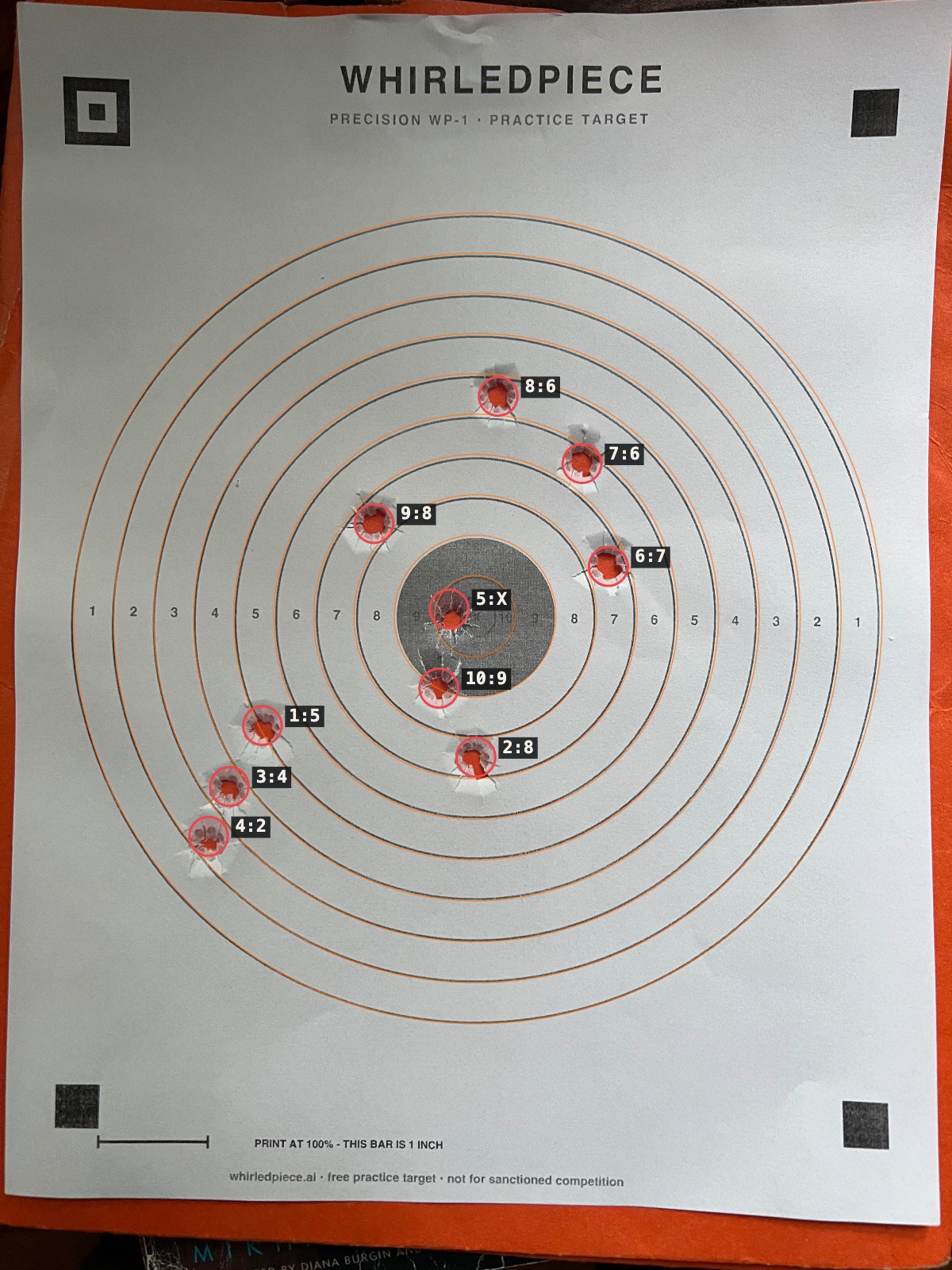
Open Score a photo in your browser, or Score Target on iPhone. Accept the photo-retention notice, then take or choose a photo. Keep the full printed rings visible; WP-1 also needs its four corner markers.
You can start in the browser without creating an account.
Score a photoTime your first string
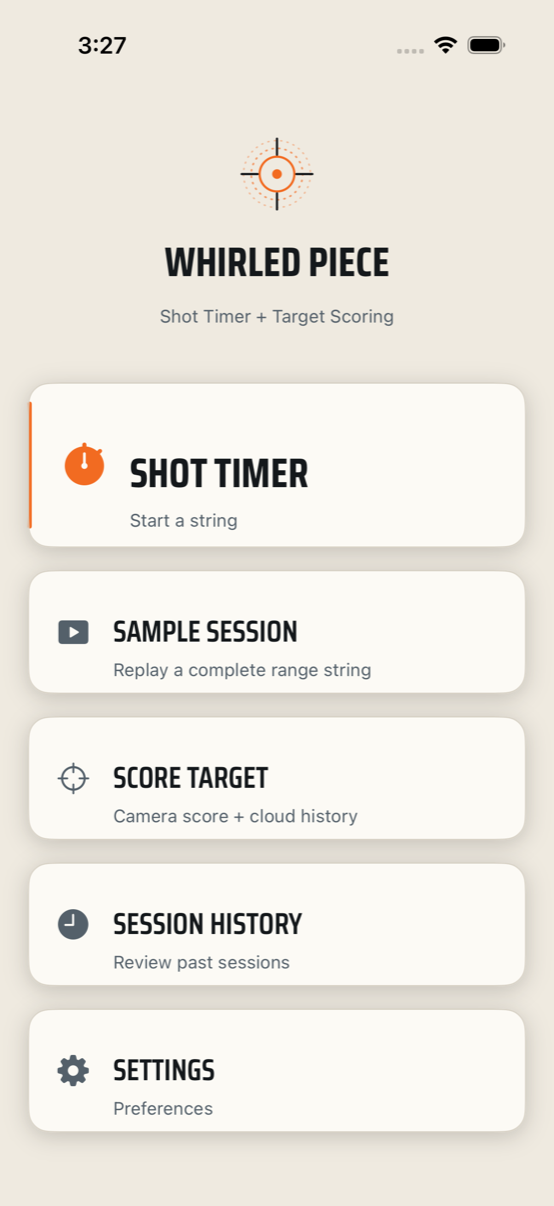
Contents ↑From the iPhone main menu, open Shot Timer. Tap the large timer face to start, wait for GO, then tap Stop when finished. A nonzero par time stops the string automatically. In Settings, choose a fixed countdown or Random Start and set the par time you want.
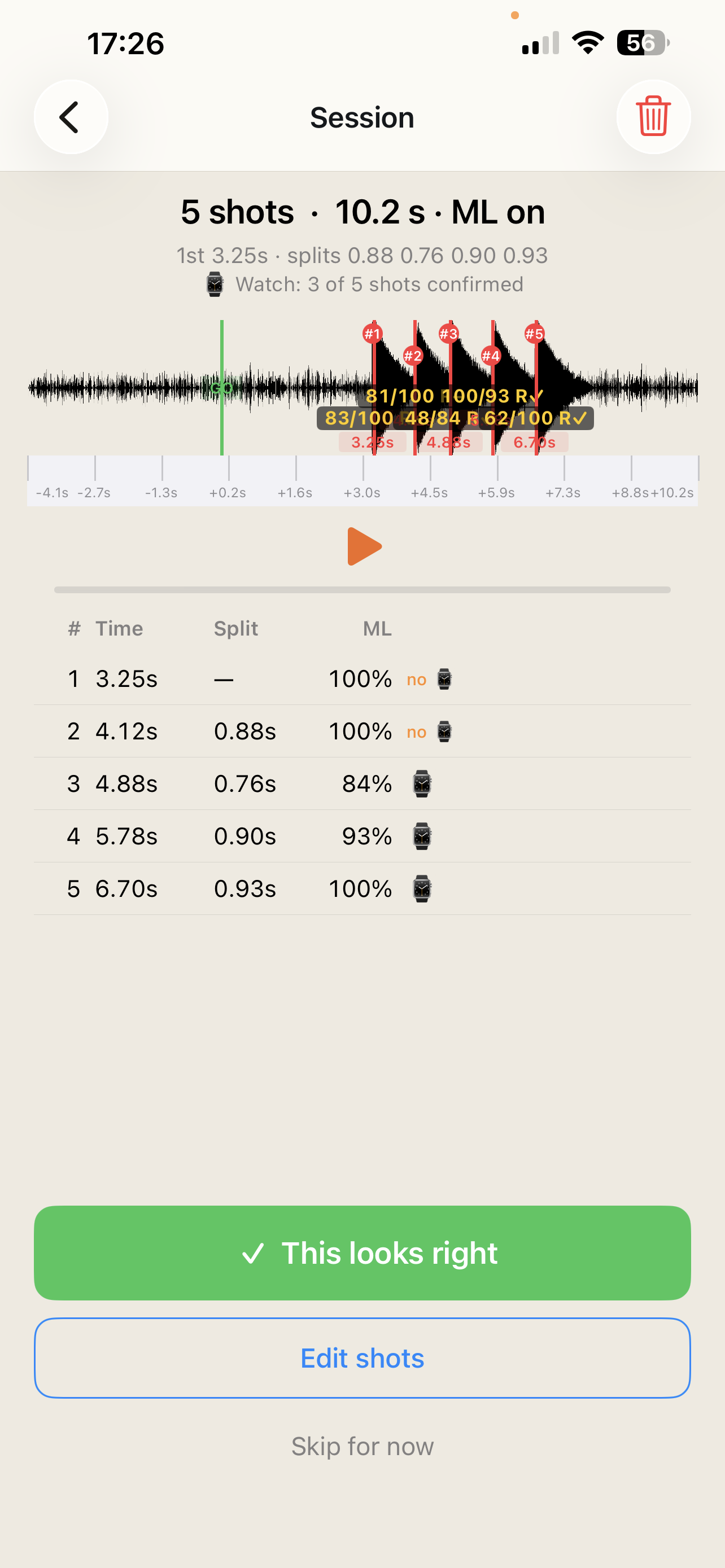
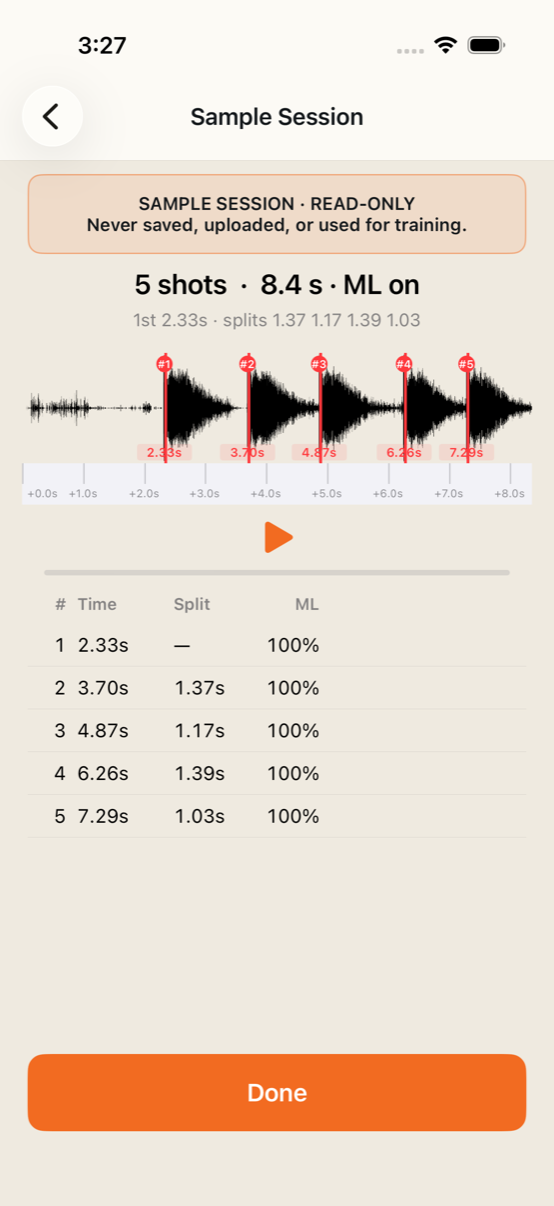
The microphone is prepared before the countdown. The GO marker is time zero; first-shot time runs from GO to your first shot, and splits are the gaps between your shots. The phone microphone supplies timing even when headphones are connected.
With Review Every Session enabled, review opens after the string. Otherwise use Session History later. Recording and review work on the phone without a network; queued uploads retry when connectivity returns. Check sync status before removing local data.
Try the sample, use Siri, or change the model
Sample Session on the main menu plays a bundled five-shot recording without microphone permission or an account. It is read-only: no new session, labels or training example are created.
Say “Siri, WhirledPiece, go” or use Start Shot Timer in Apple Shortcuts. Siri may ask for confirmation initially. The same shortcut can be assigned through the system's supported Action Button or shortcut controls.
The Next session model control and Settings → Shot Detection ML Model choose Original or Candidate v2 for a later string. Check This session for what actually ran. Advanced detection settings are in Developer Mode; they are not required for ordinary use.
Use one Watch workout per visit
Contents ↑Apple Watch is optional. On the phone, choose Shot Timer → Start Range Training Workout, select Indoor or Outdoor, then Apple Watch, This iPhone or Without Apple Health. Or start on Watch with Start Training and look for Range Training Workout Ready.
Leave the workout active across your normal phone-timer strings. Watch can provide a haptic GO, elapsed time, available heart-rate/energy metrics and wrist-recoil corroboration. A missing metric stays unavailable; the phone-only path reports duration and app totals rather than inventing sensor readings.
At the end, choose Save to Apple Health or Discard Workout. An in-app-only visit uses Finish Range Training. Watch's final saved/discarded message confirms its Health result. Stop Capture stops recoil collection for that string; it does not stop the phone timer or finish the visit.
If the Watch is unavailable
Open the Watch app directly if the phone could not launch it, confirm its Ready state, and keep the normal phone/Watch connection enabled. You can continue without Apple Health or Watch. Wrist recoil never moves a shot timestamp or deletes a detection, and no recoil match is not proof that a shot belongs to someone else.
Label what the recording contains
Contents ↑Replay the string before confirming it. This looks right accepts the current calls; use it only after checking them. Otherwise open Edit shots on iPhone, or a session's labeling workspace on the website.
| What happened | Choose |
|---|---|
| It was your real shot | My shot / keep |
| It was another person's real shot | Other shooter / Not my shot |
| It was an echo, clap or other non-shot | Reject as non-shot; iPhone Delete (false positive) |
| Your shot is missing | Add a shot at its audible onset |
| The event is real but its time is wrong | Move the marker after listening closely |
iPhone: tap a waveform marker to audition it, long-press empty waveform to add a shot, drag to adjust time, and use the shot row or marker menu for attribution or rejection. Save & continue keeps the corrections.
Website: use Play and the selected-event audition control. Add shot enables waveform placement; Add at playhead uses the current cursor. Select a marker to change its label or nudge its time. Undo/Redo correct editing mistakes. Save review keeps the current review; Save & next also advances through the pending queue.
Empty strings, uncertainty and later changes
Confirm a truly empty string as empty. Exclude a recording you cannot label reliably, preserving it without treating it as trusted training evidence. Keep other-shooter sounds distinct from rejected non-shots; they answer different questions.
The original detector output is preserved separately from corrections. Local draft recovery depends on the device, account and revision. A stale server revision may require reopening the session before saving. A model's confidence or a Watch badge is a clue for listening, not a replacement for your review.
Score a photo, then adjust if needed
Contents ↑Open Score a photo in the browser; no app installation or linked account is required. On iPhone use Score Target → Camera or Photo Library. Accept the photo-retention notice before capture. A readable photo remains available for manual recovery when recognition needs help.
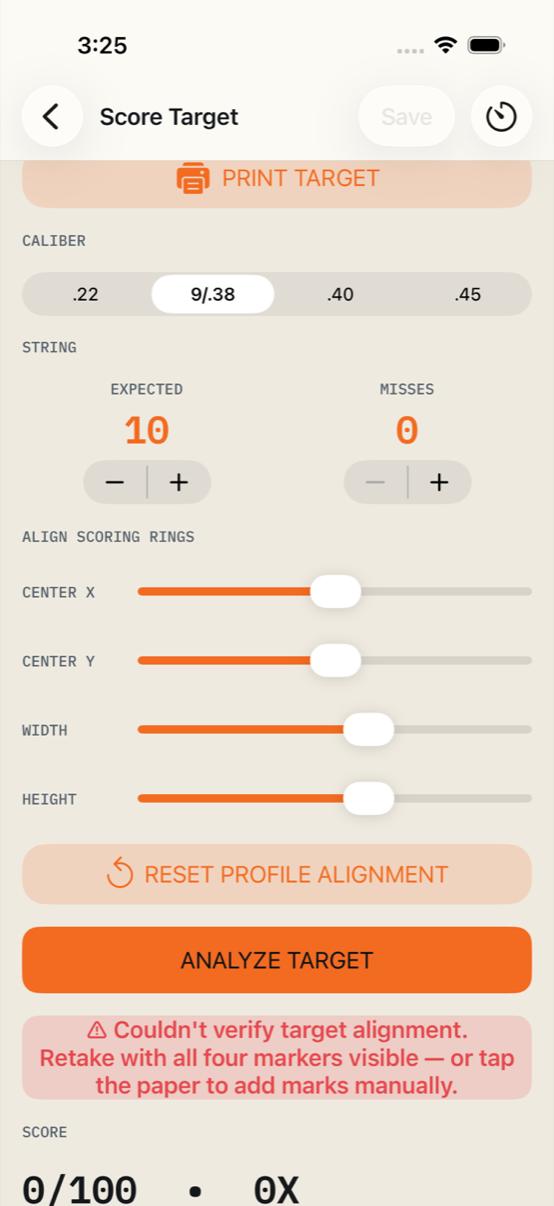
The website shows the result and image first. Adjust marks reveals editing and scoring settings. Check the target type, caliber and expected rounds. Leave the expected field blank on the web, or use 0 / Open on iPhone, when the count is unknown. Clear, evenly lit photos with the full target face work best.
For WP-1, keep all four printed corner markers visible. Print the free WP-1 PDF at 100% and measure its 1-inch bar. For other paper designs, choose their actual profile; a similar black bull does not mean the rings have the same sizes.
Choose Save to My scores on the web or Save Score on iPhone. Check the save message separately from the displayed score. Downloading a marked image provides a copy you can use or share; it does not itself save a history record.
When the photo or save needs recovery
An uncertain alignment should lead to manual controls or a replacement photo, not to a guessed verified score. An unreadable file, excessive image size, unavailable browser storage or a network problem can still need action. Keep the page open, follow its specific status and use Retry when offered. Do not clear browser data while photos or scores are queued.
Review uploaded photos includes retained photos that have no finalized score. Photo retention and saving a score are separate steps; a local preview alone does not prove the server has received the image.
Score NRA targets
Contents ↑B-2 is the 50-foot slow-fire target; B-3 is the 50-foot timed/rapid-fire target. B-2 has no X ring. B-3 records X hits within its ten ring. Check the printed name and the selected target type before accepting any suggestion.
The app can suggest the target type, align the printed rings, and propose shot marks on B-2 and B-3 photos. Check the printed name before accepting the suggested type. Both can receive a provisional fit from their printed concentric rings, without WP-1 corner markers. Check every orange ring against the photo. Fit printed rings can find the rings again or refine a manually adjusted center and outer ring. Manual controls remain available if the automatic fit is uncertain. Saved alignment stays in place unless you request a new fit or edit it.
B-8 / B-6 and B-16 are also available, with manual alignment and marking. B-27 is not currently supported. On B-2/B-3, Use proposed marks adds the suggested holes so you can move, remove, or add marks until they match the paper. Check printed numbers and connected tears carefully. Both target-model choices use the same NRA suggestions; the experimental learned verifier applies to WP-1.
Changing type and checking near-line calls
Changing the target type can change every score. In an ordinary saved iPhone result, choosing another type starts a new retained score from that photo and preserves the previous result. The retained-photo review workflow can label the correct type in its review layer. Do not substitute WP-1 to make an NRA photo look supported.
Choose the actual caliber/gauge. The scoring boundary uses the target's ring dimensions and gauge, not just the center point. Near-line scores, tears and overlapping rounds need close inspection. This is a practice aid, not official match adjudication.
Make the markings match the paper
Contents ↑- Find the hole. On the web, Add shot then click/tap its center—even beside another mark. Cancel add or Escape ends placement. On iPhone, tap empty paper. Mark holes outside the scoring rings too; a zero-point visible hole is still a hole.
- Move precisely. Select and drag a mark. Zoom preserves editing; drag empty space to pan. The magnified raw-image view and one-pixel nudges help with centers near a ring.
- Remove mistakes. Delete selected removes a false mark on the web without another confirmation. Undo restores it; Redo reapplies the change. Saved-target editing on iPhone also has Undo/Redo.
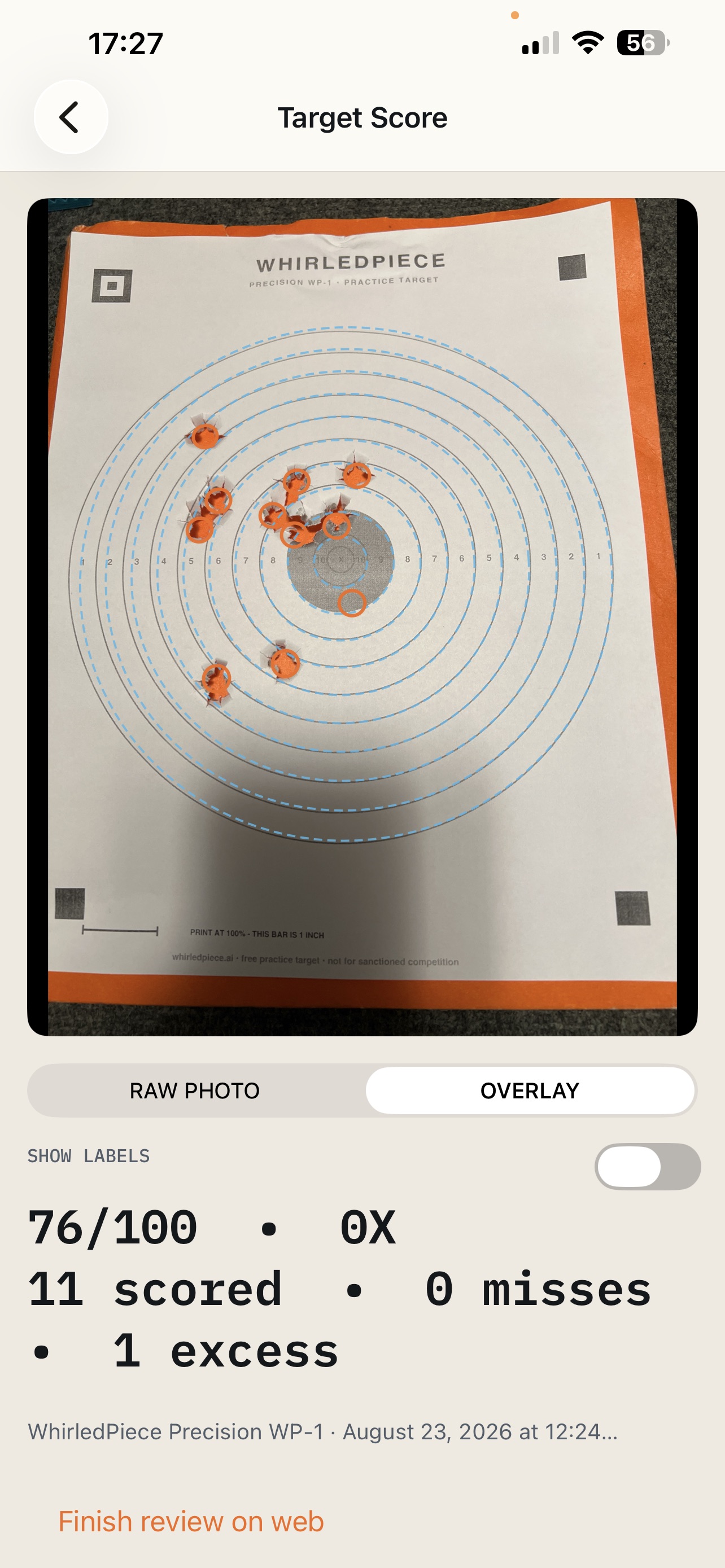
- Check beneath the overlay. Hide marks / Show marks on the web hides and restores rings, gauges and labels without changing your data or zoom. Add shot shows them again. iPhone saved detail offers Photo / Overlay.
- Resolve rounds honestly. Add overlap only for an extra round through an existing opening. Calculated misses suggest expected rounds minus marked rounds, including overlaps. Enter a different number when that suggestion is wrong; Use calculated misses resumes the calculation.
- Finish when ready. Check alignment, every visible impact, overlap counts, caliber, expected rounds and misses. Finish review & next saves confirmation and advances. Save for later or Skip keeps an unfinished review available.
If 10 rounds were expected and 8 are marked, the suggested 2 misses do not prove that two rounds missed the paper. Add overlooked holes first. If their whereabouts remain unknown, override the miss count to leave the count unresolved. A reviewed label set can still have an unresolved round count.
Queues, drafts and assisted labels
The top-of-page remaining count includes the current target and skipped targets. Review targets addresses saved scores; Review uploaded photos also includes retakes and photos without a score. Local working drafts are specific to the browser/device and account. Save before changing devices; another reviewer's newer revision is protected from being overwritten.
Assistant draft markings and fitted rings are proposals awaiting your confirmation. Read their uncertainty notes; unmarked torn regions may need your judgment. A matching total or a suggested center never counts as human review by itself.
Operators with admin access have a separate prepared NRA queue in Admin. Operator draft/review layers preserve the source image, original automatic result and owner labels. This area is available only to authorized reviewers.
Compare the right model outputs
Contents ↑There are two separate model choices: shot detection classifies recorded sounds, while target scoring proposes holes in photographs. Changing one does not change the other.
Target models: Original and Learned verifier (experimental) are available for supported WP-1 images. The learned verifier rechecks Original's candidate locations; it is not guaranteed to be better. On the web, Compare models opens the results, and Show markings selects a model's read-only overlay. Return to Your labels (editable) before changing your own marks. A comparison preview does not overwrite your saved labels or become saved model history automatically.
Shot-detection models: Original and Candidate v2 are selected for the next iPhone string. Their confidence numbers have different meanings. Check what actually ran, then compare missed shots, false events and attribution against the recording.
Audio replay availability and advanced candidates
The website's Model proposals panel can run an independent replay of the saved audio while a verified compatible worker is available. Choose the model and Run model. Refresh availability checks again; an unavailable worker or ineligible recording is a limitation of replay, not evidence that the original recording is lost. Candidate replay may require timing evidence saved by a compatible app build.
Replay uses compressed saved audio and can differ from the live phone result. Target “possible” or “rejected” candidate overlays are diagnostic proposals, not confirmed holes. Neither model agreement nor high confidence replaces your labels.
Look back at your progress
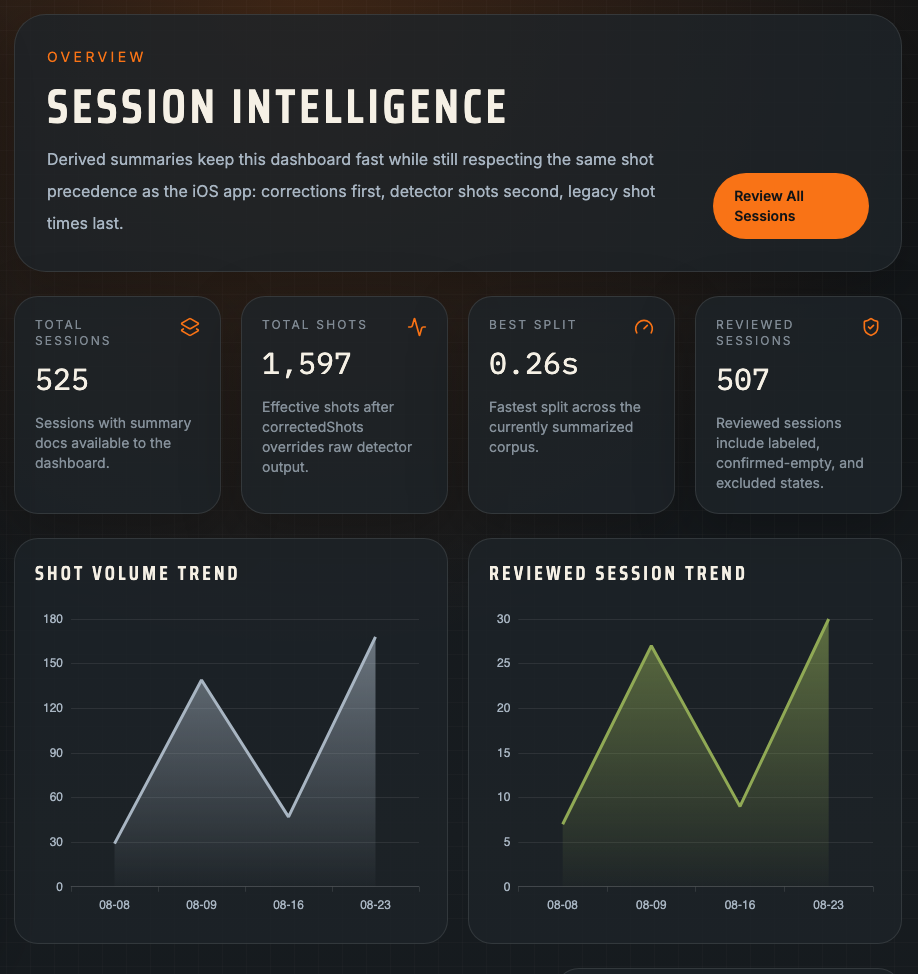
Contents ↑Your saved sessions and targets give you a record to return to as you improve. Session History on iPhone and Sessions on the web let you replay recordings and compare first-shot times and splits. My scores keeps your target photos, scores, and corrections. Range Visits and Trends on the web help you look back across your practice sessions.
Already signed in: use the same account on iPhone and the web. My scores and Target Scores show saved results; uploaded-photo review also covers retained captures without a saved score. Link the phone's existing guest account through Settings → Link Account to preserve that phone history.
Browser guest: your private scores belong to that browser identity. Open Keep my photos in the browser where you captured them. It saves pending photos/scores, then offers Continue with Apple for a new or existing account. For another method, prepare the photos first, use Sign in instead, then return to finish the claim.
Claiming browser target photos preserves their original results and labels. It covers target history; it is not a general merge of unrelated phone session/audio accounts. Keep the browser open until the handoff completes, and verify the destination account's history before clearing site data.
Missing history, private links and deletion
If history looks empty, check the signed-in account, whether you are viewing saved scores or uploaded photos, and whether upload/save is still queued. A result link points to a private record; it does not grant another person access.
Delete a saved target through its available delete action if you intend to remove its related evidence. Account deletion in iPhone Settings removes the account's data through the deletion workflow, including claimed target evidence. Ask support when a file has no available owner delete action; do not assume clearing the browser deletes server photos.
Help us improve WhirledPiece
Contents ↑WhirledPiece is new, and your experience helps us shape it. Feature ideas, target requests, and suggestions for making a screen easier to use are all welcome. You do not need a bug report to get in touch.
Corrected recordings and target photos help us train and test future machine-learning models. We review those examples and test updates before releasing them. Each useful correction helps us understand where the timer or scorer needs work.
For a timing or scoring problem, correct the saved result if you can. Use iPhone Settings → Send Feedback, the website's Feedback form, or info@whirledpiece.ai.
For a problem report, these details help:
- Include the session/target link or its date and time, and whether the problem concerns sound, paper scoring, Watch, saving or account access.
- Describe the action, expected result and actual result. Copy the exact error message and say whether it repeats.
- For sound, identify the missed/extra event's approximate time and whether it was your shot, another shooter or a non-shot. Include indoor/outdoor and phone placement when relevant.
- For paper, include target type, caliber and the troublesome location or tear. Say whether alignment, a missing/false hole, an overlap or a ring value was wrong.
- Include device/browser, app build and the actual model shown. Report observed lag, repeated heating or retry behavior with the action that caused it.
Say what you cannot determine. Do not invent labels or repeat live fire to reproduce a software issue. Diagnostic logs can help a reproducible failure; inspect them before sharing. Your feedback helps us choose what to work on next; reviewed examples help us test whether the changes work.
See the app in real screens
Follow the menu, review, scoring and history in these previously published app examples. Screens were captured in August 2026; some controls have since moved or gained new options. Use the instructions above for the current workflow. The example scores and Watch badges are illustrative, not accuracy claims.
Explore without recording
The bundled Sample Session is the easiest way to learn playback, timing and the review layout at home. The example screen shown is a sample, not one of your sessions.